iPhone Action button shortcut support for iOS
One of the core goals of Ally as a productivity solution is ensuring communication with Ally is fast and easy. You should be able to add a todo, capture an idea, or get the date of your next meeting without friction.
There’s no faster way to capture quick thoughts, reminders, and notes than with dictation and there’s no faster way to start dictation than with the iPhone Action button, a configurable hardware button on 14, 15, 16, and 17 series iPhones.
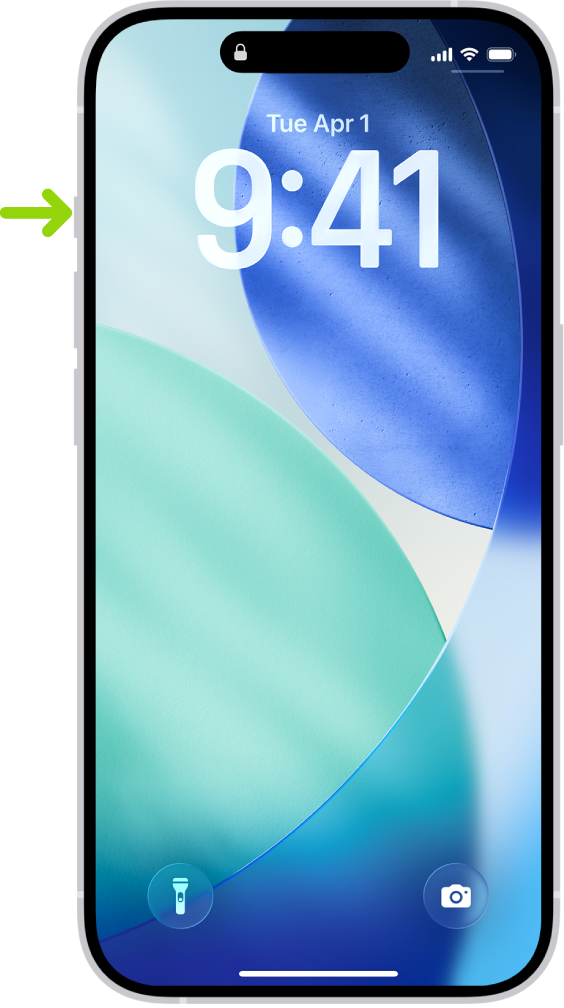
The iOS app was recently updated to include an Action button shortcut that instantly opens the Ally AI iOS app and starts a recording.
This means you can capture any thought instantly any time your phone is near with just a single click. It’s the fastest, most frictionless way to pass information from your head to Ally where it can be organized and retrieved when needed.
It’s a great way to get things out of your head and into your Ally Inbox where you can then store, organize, and leverage it in the future.
How to configure your iPhone’s Action button to quickly capture and transcribe voice notes:
Install the Ally AI iOS app from the iOS app store.
Open the Settings app on your iPhone.
Scroll down to find Action Button in the list and tap it to open its options.
Swipe right to left to scroll through the options until you reach Shortcut.
Press the selector and search the available shortcuts for
Ally.Choose
Start Recordingby pressing it.Close the Settings app.
Press and hold the Action button on your phone to do a test recording.
Being able to quickly capture voice notes is like a super power. You can get things out of your head and into a productivity system with minimal friction and get back to whatever needs your attention.